Choosing a face recognition attendance and access control solution in 2026 should be simple for small businesses. With EmpCloud, you can launch a secure pilot in minutes, Start Free Trial. No Card →, so only the right people can view or change records.
Then, we’ll compare options and show why a camera you already own may beat a $1,000 scanner.
By the end, you’ll know what to look for, what it should cost, and how to go live this week, not next quarter.
What you’ll learn quickly is practical and measurable. You’ll see how to evaluate accuracy, speed, and liveness without needing a lab or a consultant. You’ll understand the true costs of legacy clocks compared with tablet-based systems that you can mount in a few minutes. We’ll also walk through the exact privacy and compliance questions to ask any vendor. Finally, you’ll get a clear, step-by-step plan to launch in a day and connect everything to payroll with minimal effort.

Why Small Businesses Still Struggle with Attendance Tracking
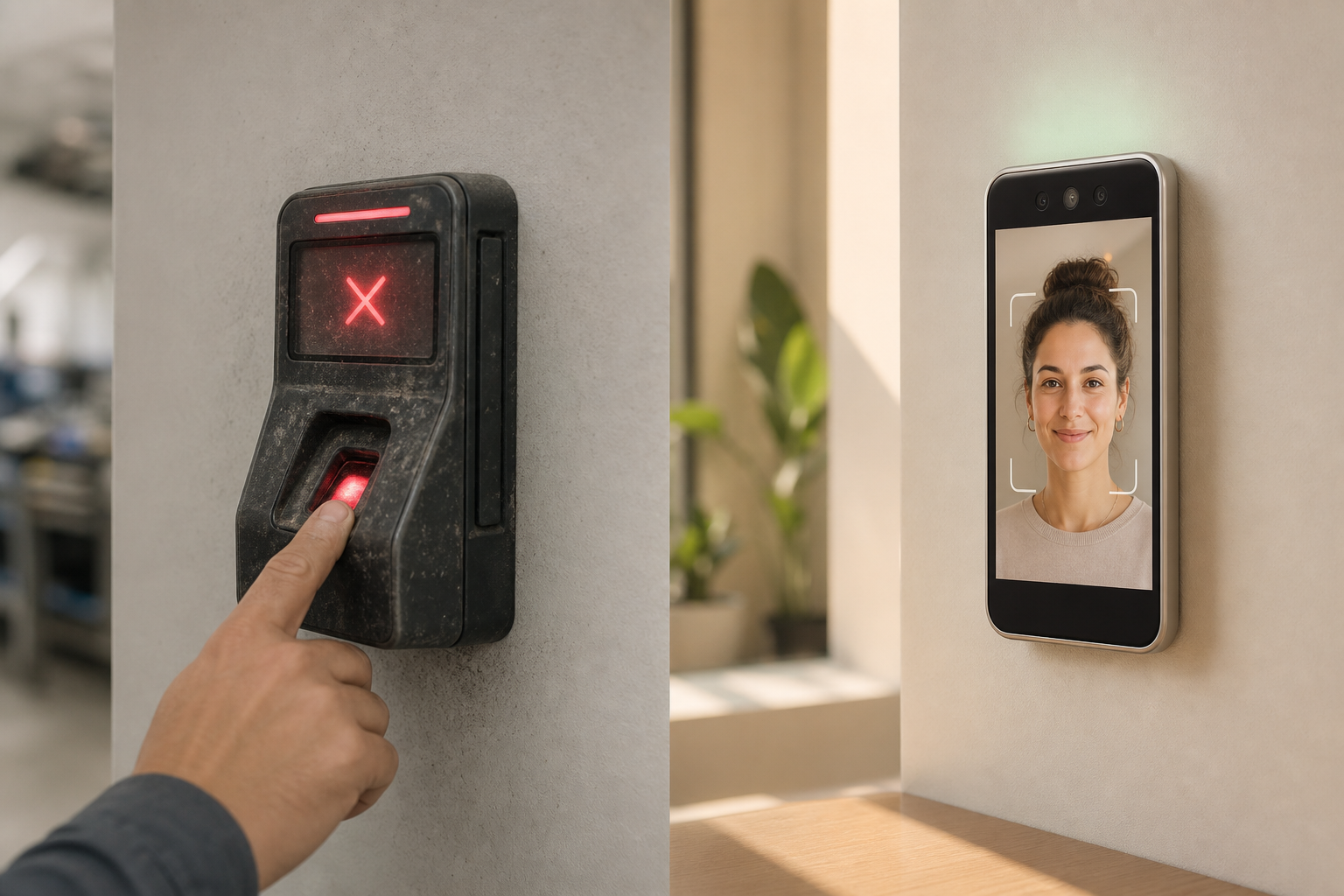
Thin margins make time theft sting. The industry cites buddy punching as a ~$373 million annual loss for US employers. That’s not abstract, two minutes here, ten minutes there, and your profits fade. If you’re still on punch cards, PIN pads, or shared badges, your system trusts the wrong thing: the card or the code, not the person.
Manual checks also pile up. As a founder or office manager, you wear six hats. You don’t have a spare Friday to audit late arrivals line by line. And if you miscalculate, you risk wage disputes and labor compliance headaches. As a result, the “cheap” spreadsheet ends up pricey once you add hidden hours and errors.

Moreover, older biometric gear (think fingerprint scanners and badge readers) often misses the mark for teams under 50:
- Upfront hardware can run $500–$2,000 per device, plus install and maintenance.
- Readers break or clog. Dust, gloves, or sanitizer throw off scans.
- Multiple sites need multiple boxes, which means more costs and more points of failure.
- Data export is clunky, so payroll still takes manual steps.
Furthermore, spreadsheets and basic time clocks don’t flag patterns early. You can’t see that one site spikes in late check-ins before it hits payroll. And with no alerts, you catch issues after you’ve paid for them.
Specifically, face recognition attendance and access control addresses the root cause. It checks the person, not the card. With liveness detection, a selfie on a phone won’t pass. And with a simple wall-mounted tablet, you skip custom scanners and service calls.
A Quick Diagnostic You Can Run Today
- Pull last month’s timesheets and count manual edits. Over 5% edits is a red flag.
- Check late arrivals by location. Spikes without action mean you lack alerts.
- Audit how long payroll processing takes per cycle. More than 2 hours for <25 staff is costly.
- Ask two managers how they resolve missed punches. If answers differ, your policy isn’t clear.
Hidden Costs You Can Measure This Week
In fact, the hidden costs of “make do” are easy to miss:
- Time lost to weekly timesheet clean-up.
- Conflicts with staff over missed punches or edits.
- Errors that roll into tax and leave balances.
- Compliance risk if records aren’t consistent.
For context on time theft as a broader issue, see the overview on Time theft. Compared to alternatives, modern face-based clocking removes the “buddy” from buddy punching and removes the hardware bill, too.
Quick truth: trust the person, not the token. Face-based clocking validates who showed up, not what they carry.
The Bottom Line on Legacy Methods
PINs and badges are easy to share, and that makes them weak for honest timekeeping. Fingerprint and palm readers can help, but they add cost and upkeep and often struggle with gloves, dry skin, or sanitizer. Spreadsheets seem flexible until errors hide in formulas and only surface after payroll closes.
| Method | Upfront Cost | Spoof/Buddy Risk | Hygiene/Upkeep Issues | Remote/Multi-site Friendly | Data Flow to Payroll |
|---|---|---|---|---|---|
| Punch cards/PIN pads | Low hardware | High | Low | Medium | Manual exports |
| Badges/Prox cards | Medium (printers, cards) | High | Low | Medium | Manual/semi-auto |
| Fingerprint/Palm readers | High ($500–$2,000+) | Medium | High (gloves, sanitizer, dust) | Low to Medium | Often manual |
| Face recognition on tablet | Low (existing device) | Low (with liveness) | Low | High (add kiosks, mobile) | Automatic |
Also Read!
EmpCloud vs Keka for Small Businesses: Which Is Better for Face Recognition Attendance?
Remote Team’s Guide to Choosing Employee Monitoring Software
What to Look for in a Face Recognition Attendance System
Buying for a small team means getting the few things that matter right. Don’t start with brand names. Start with testable claims you can check in a day.
Quick Evaluation Checklist
Begin with a one-minute pilot where you enroll three to five people and test in real lighting. Confirm liveness is enabled by default, and ask for any documented Presentation Attack Detection results so you know spoof-prevention isn’t just marketing. Request clear false acceptance and false rejection rates along with typical recognition time; in normal environments you should expect a match in under one second. Also verify that the tool works on a tablet or phone you already own so you don’t get locked into proprietary scanners.
Next, validate the basics that keep payroll running smoothly. Ensure there’s a direct payroll connector or at least clean CSV exports that capture overtime and leave correctly. Check that the system supports sites and shifts, manager approvals, and real-time alerts for late or missed punches. Finally, look for SOC 2, encryption at rest and in transit, role-based access control, consent logs, retention settings, and responsive support with simple, per-user pricing and no lock-ins.
Must-Have Admin Features for Small Teams
- Role-based access control with least-privilege defaults and manager-only approvals.
- Multi-location support with per-site dashboards and filters for clean reporting.
- Configurable policies: workweeks, grace periods, overtime rules, holidays, and leave types.
- reliable audit logs covering enrollments, edits, exports, and threshold changes.
- Clear export mappings (employee ID, timestamp, kiosk ID, status) and API access.
Accuracy and Speed
First, check for sub-second recognition in normal office light. Ask for the false acceptance rate (letting a wrong person in) and false rejection rate (blocking the right person). You don’t need a lab. You need a few real-world trials with different faces, glasses, hats, and lighting to see if it holds up.
Also ask whether detection runs on-device or in the cloud, because network round-trips can add delay. Aim for consistent latency during peak times, not just “best case” demos.
Go a layer deeper by asking how thresholds are tuned. Many systems expose a confidence score; the vendor should explain how to balance a low false accept rate with a reasonable false reject rate for your team size. Small teams often prefer a slightly stricter threshold with an easy retry flow to stop buddy punching without slowing the line. If the product adapts per kiosk or time of day, confirm that changes are audited so you can trace any odd behavior.
 vs cloud-only (network dependent), with latency bars; clean infographic style)
Field Test Script (5 minutes)
- Enroll 5 people in bright indoor light; capture a neutral face and a light smile.
- Test recognition at 1 meter with and without glasses; time to match should be <1 second.
- Vary angles (±15° yaw/pitch) and lighting (window light vs overhead) to check consistency.
- Attempt a spoof with a printed photo and a selfie on a phone; confirm liveness blocks it.
- Log any false rejects; retry at a slightly closer distance and note recovery time.
Anti-Spoofing and Liveness
Second, make sure it can’t be fooled by a photo or video. Liveness checks look for depth, micro-movements, and other signs that a real person is present. This is key to stopping buddy punching for good.
If available, ask for results from presentation attack detection (PAD) evaluations. Challenge-response prompts (blink, turn, or smile) can further reduce spoof risk without slowing check-ins.
You can also ask whether the vendor follows recognized benchmarks or standards such as ISO/IEC 30107-3 for PAD testing. While not every vendor will publish full lab reports, they should provide a clear description of what attacks they’ve tested, including printed photos, screen replays, and 3D masks. If deepfake videos are a concern in your industry, verify that on-device liveness and challenge timing make replayed synthetic media impractical. These details separate reliable defenses from buzzwords.
Common Attacks vs Defenses
| Attack Type | Example | Effective Defenses |
|---|---|---|
| Printed photo | High-res printout | Texture analysis, depth cues, challenge-response |
| Phone screen replay | Video held to camera | Screen glare detection, optical flow liveness |
| 3D mask | Molded face | Depth sensing, multi-spectral checks, micro-expression cues |
| Deepfake video | Synthetic face | On-device liveness, antispoof classifiers, challenge timing |
Pricing That Fits Small Teams
Third, avoid hardware-locked plans. Per-user/month pricing is simpler and fairer for 5–50 staff. You can start small and scale without buying boxes you’ll never use.
Confirm whether pricing is billed monthly or annually, and double-check for setup fees, minimums, or cancellation penalties. A transparent plan lets you pilot without financial risk.
Before you sign, ask directly about potential gotchas that inflate the headline price. Clarify whether there are kiosk or device license fees per tablet and whether support is included or charged per ticket. Check if data export or API access incurs extra costs and whether there are per-location add-ons or hard limits on kiosks. Vendors that answer cleanly on these points tend to be easier to work with during renewals.
SaaS vs Hardware-Locked Pricing Snapshot
| Model | What You Pay | Upside | Watchouts |
|---|---|---|---|
| SaaS per-user/month | $3–$7 per user | Start small, scale easily, frequent updates | Check for per-kiosk/device fees |
| Hardware bundle + license | $500–$2,000 device + support | “All-in-one” pitch, ruggedized gear | Install delays, vendor lock-in, repair costs |
| Hybrid (SaaS + optional device) | Optional tablet + subscription | Use your own device or buy certified mounts | Verify that BYOD is first-class, not an afterthought |
No Dedicated Hardware Required
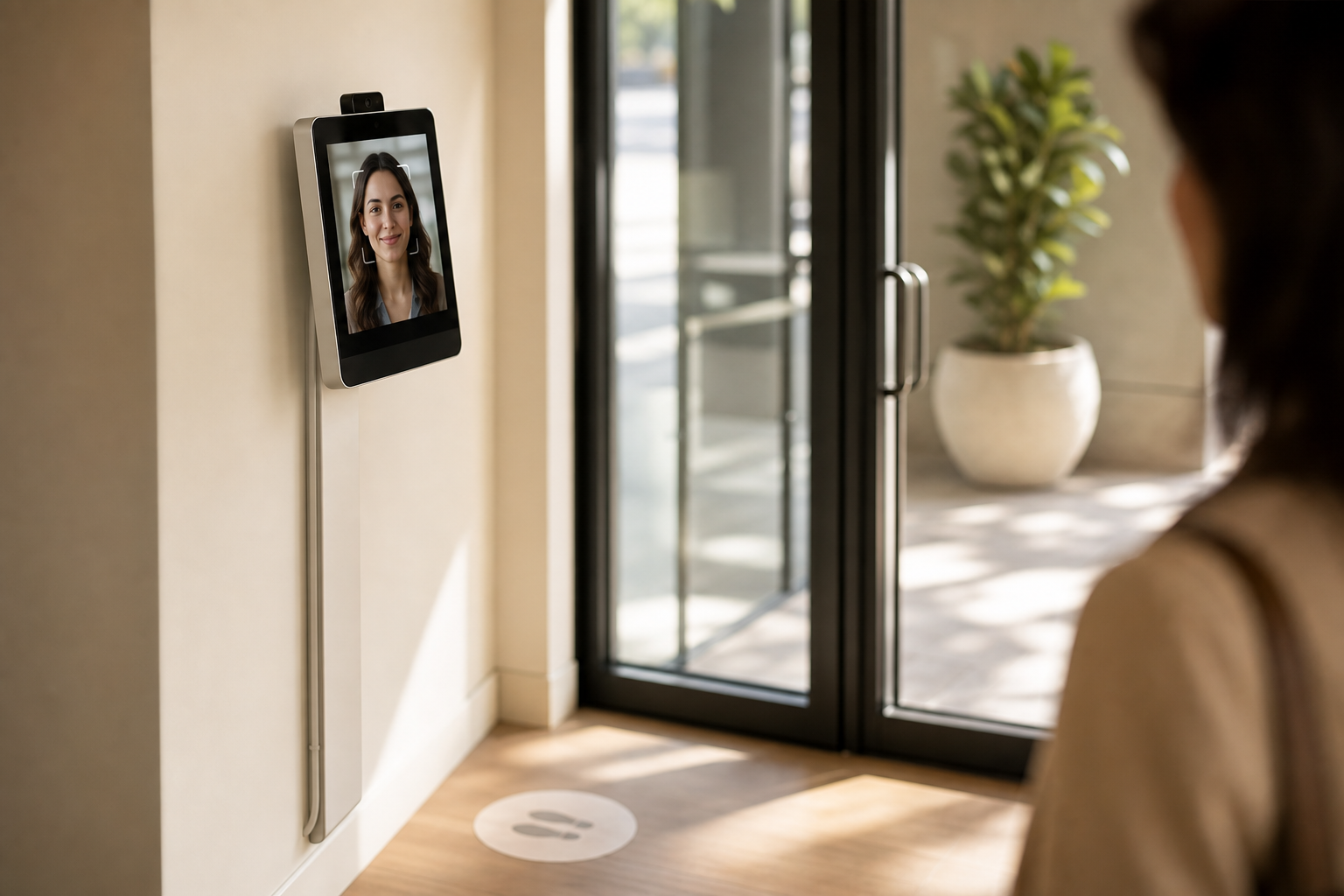
Fourth, confirm it runs on a tablet or phone you already own. A wall-mounted iPad or Android tablet near the door is plenty for most shops. As a result, rollout takes hours, not weeks.
Check recommended device specs and front camera quality to avoid slow or blurry captures. Consider placement near consistent lighting and power, with mounts that angle the camera to typical face height. In high-traffic entries, place floor markers or small decals on the wall so employees stand at a consistent distance and angle for quicker matches without coaching.
- Recommended device guidelines:
- Front camera 5MP+ with good low-light performance
- 2GB+ RAM (Android 10+/iOS 13+)
- Secure mount at 1.4–1.
- Stable Wi‑Fi/LTE and always-on power
Payroll Integration
Fifth, attendance data should flow right into payroll. Punches, overtime, and leave must sync so you don’t copy and paste at month-end. One clean source of truth cuts disputes and saves time.
If you use third-party payroll, verify CSV exports and connectors for tools like QuickBooks, Xero, or regional systems. Your ideal flow includes error handling for missed punches and manager approvals before pay run.
Several integration pitfalls are common but preventable with a brief check. Make sure time zones and daylight savings are normalized so hours don’t drift during seasonal changes. Confirm that overtime calculations reflect local regulations and your policy, and verify that employee IDs are unique across locations to avoid merges. Finally, test the missed-punch handling path so negative hours or duplicate entries can’t sneak into a pay cycle unnoticed.
Integration QA Checklist
- Map employee IDs to a single canonical field across HR, attendance, and payroll.
- Set default time zone per location and verify DST transitions with a test week.
- Validate overtime, holiday, and leave rules against a sample period and edge cases.
- Run a dry-run export, then import to your payroll sandbox to spot mapping gaps.
- Confirm approvals lock the period and prevent late edits after payroll close.
Scalability From 5 to 50
Sixth, ensure it works for a 5-person team and still feels snappy at 50. You don’t want to switch tools mid-growth. Check if it supports multiple sites, multiple shifts, and basic leave policies out of the box.
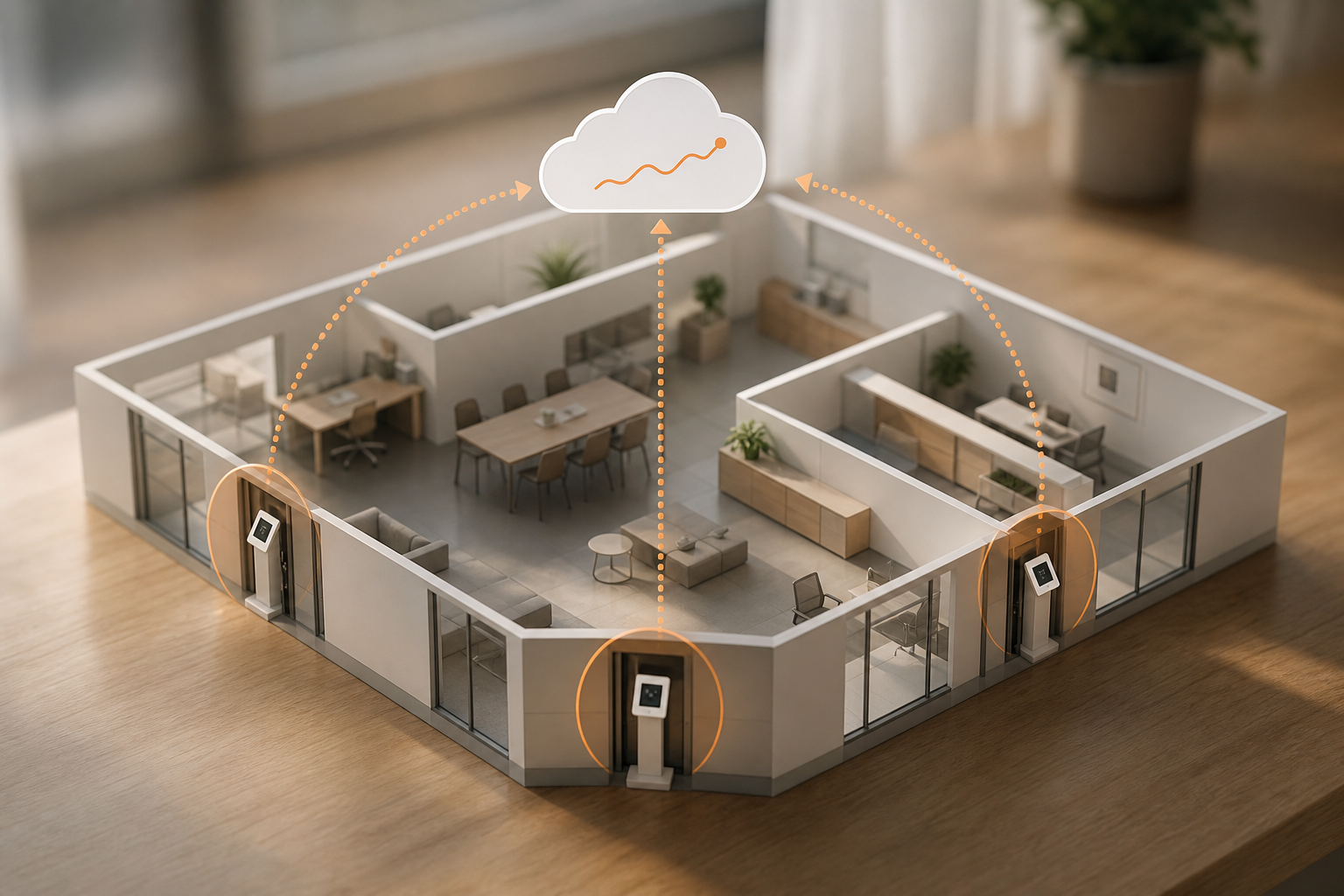
Look for multi-kiosk support, per-location permissions, and flexible grace periods for shift changes. As headcount grows, you’ll want bulk enrollment and reliable uptime during morning rush hour.
Uptime and Morning Rush
For shops with shift handoffs, performance between 8–9 a. m. or at shift changes matters more than a perfect demo. Ask for published uptime and whether the vendor uses regional failover, so a brief outage doesn’t stall a busy entryway. If recognition runs on-device, verify how punches queue locally and sync later. This removes the bottleneck of a flaky connection and keeps your attendance trail intact even during a brief network issue.
If the kiosk still works when your internet blips, you’ve picked the right architecture—on-device first with reliable retry and sync.
Data Privacy and Compliance
Seventh, ask where biometric data is stored and how it’s protected. In plain terms, SOC 2 means an independent auditor reviewed the vendor’s security controls. Encryption at rest and in transit is table stakes. Role-based access (RBAC) means only approved people can view or edit records.
If you operate in regulated regions, confirm alignment with GDPR/CCPA and check for features like consent logging, retention settings, and data export on request. For more on SOC 2 itself, see the overview of Service Organization Control.
Some US states, such as Illinois under BIPA, impose specific consent, disclosure, and retention requirements for biometric identifiers. Even if you’re not in a BIPA state, following those standards is a good baseline. Ensure your chosen system lets you post policy links, collect explicit consent, and schedule deletion automatically when employment ends. Small teams benefit from templates and checklists that translate legal requirements into simple toggles.
Privacy-first posture beats retroactive cleanup. If you can prove consent, access limits, and deletion timelines on day one, audits become routine instead of stressful.
Compliance Map at a Glance
| Topic | What to Ask | Ideal Answer |
|---|---|---|
| Consent | How is employee consent captured? | Logged consent with timestamp, versioned policy |
| Storage | Where is biometric data stored? | Encrypted at rest in audited regions/data centers |
| Access | Who can view/edit/export? | RBAC with audit logs and least-privilege defaults |
| Retention | How long is data kept? | Admin-configurable, auto-delete on schedule or request |
| Portability | Can we export everything? | Full self-serve export in open formats (CSV/JSON) |
Ease of Setup and Support
Eighth, small teams can’t spare a week for setup. Look for a guided flow to enroll faces, set shifts, and toggle leave policies in one sitting. Onboarding help and fast support matter more than fancy feature names.
Training resources, short how-to videos, and live chat can make the difference between a smooth launch and a stalled pilot. Prioritize vendors that offer hands-on assistance during your first week.
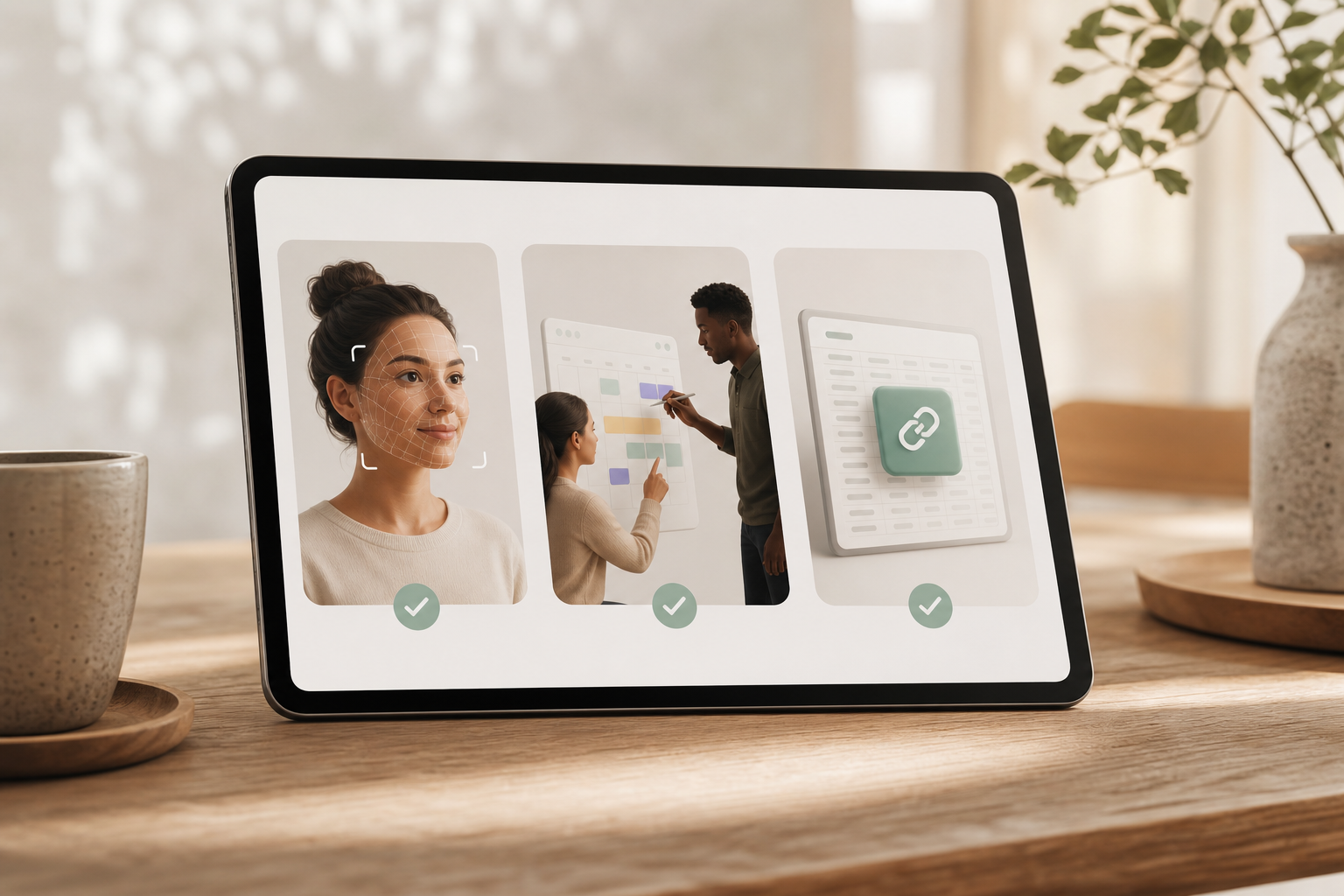
Tip: Run a “soft launch” for two days—collect data but don’t use it for payroll yet. Fix edge cases, then flip the switch.
Quick Red Flags
Be cautious of proprietary scanners that lock you into a hardware purchase, especially if there’s no mobile or tablet option. Avoid tools that claim “AI magic” but can’t demonstrate liveness or provide a simple field test you can run yourself. If the product can’t export data or link to payroll cleanly, you’ll be stuck reconciling hours at month-end. Large upfront hardware fees for a single site are another indicator that scaling will be painful.
Also Read!
Small Business Guide to Choosing a Face Recognition Attendance System
How EmpCloud Solves Face Recognition Attendance for Small Teams
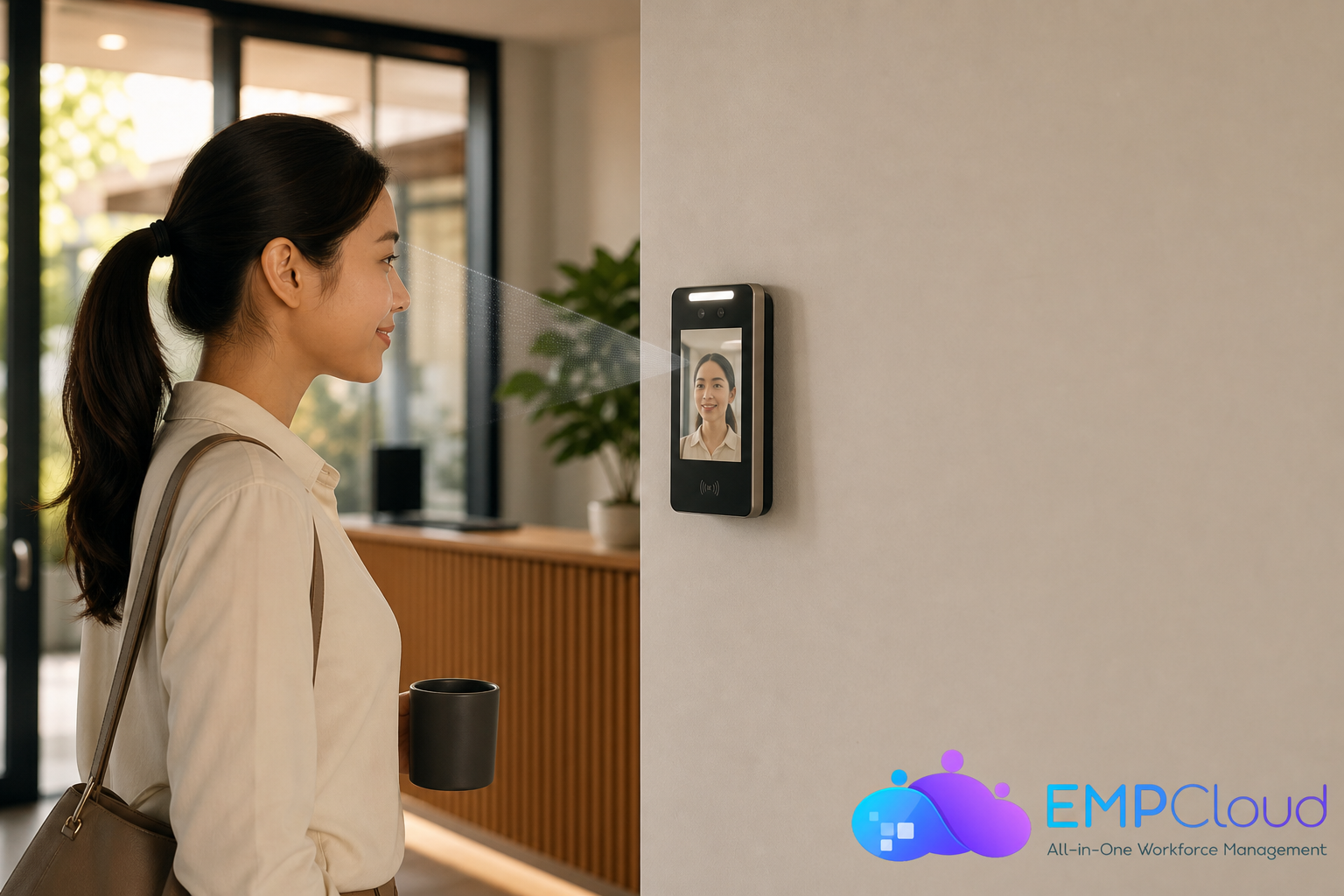
EmpCloud’s face recognition attendance and access control is built for speed, accuracy, and real-world use in small teams. There’s no special hardware to buy. It runs on standard tablets or phones, so you can mount a device by the entrance and go live the same day.
Moreover, it eliminates buddy punching with advanced biometric checks and liveness detection. That’s not a slogan, it’s backed by users.
“Emp Biometrics has been a big improvement for us. The facial recognition feature is both secure and reliable, eliminating buddy punching with accurate attendance tracking. It has significantly improved our workforce accountability and operational efficiency. Highly recommended!” — Laura Thompson, COO Of Precision Manufacturing
In addition, access is tied to roles. You can set who can view, approve, or export time, without giving full admin rights.
“With EmpCloud, managing attendance and access has never been easier. Its lightning-fast face detection and reliable role-based access control ensure smooth and secure operations.” — Chen Wei, Operations Director
How the Kiosk Flow Works (Simple 4-Step Loop)
- Employee approaches the tablet; guidance dots indicate ideal distance.
- On-device detection triggers liveness and face match in under a second.
- Result logs instantly with location, kiosk, timestamp, and status.
- If network is offline, events queue securely and auto-sync on reconnect.
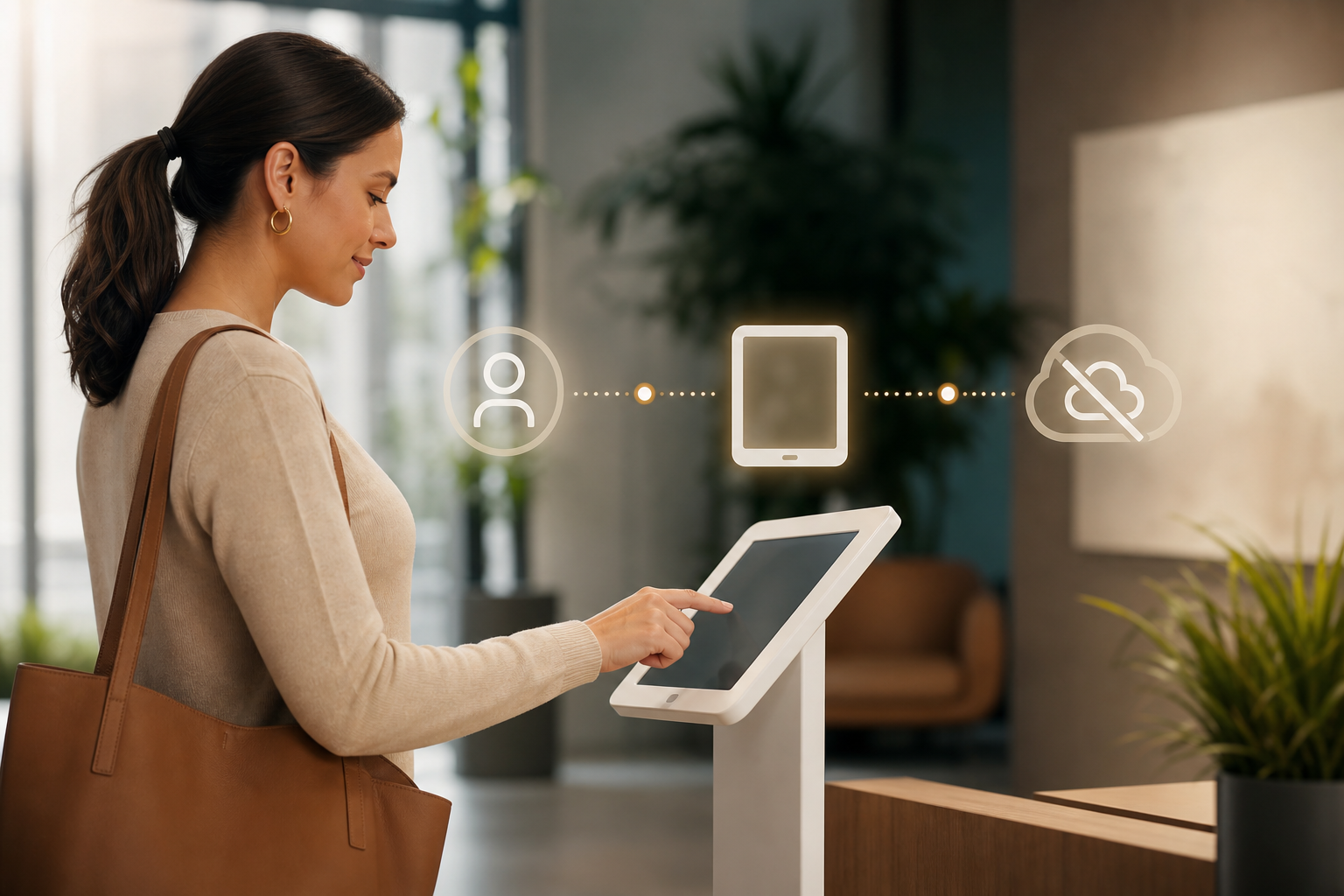 → cloud dashboard/payroll; include icons for liveness, encryption, and approvals; clean, minimal)
At-a-Glance Benefits
EmpCloud helps you launch in under a day using a tablet you already own and pairs that speed with liveness-checked face recognition to block photo or video spoofing. Attendance flows directly into automated payroll, removing manual exports while correctly handling taxes and accounts for clean, auditable runs. Shift scheduling, leave, and approvals are included by default, so you don’t purchase add-ons just to meet basic policy needs.
As you grow, multi-location and multi-kiosk support ensure lines move quickly and reporting stays clear by location. Manager-level permissions let supervisors approve or correct entries without broad admin access. All of this sits on SOC 2–aligned controls with encryption, RBAC, and audit logs you can share with stakeholders during reviews.
Mapped to Your Buying Criteria
For accuracy and speed, EmpCloud’s detection performs in normal office light and includes liveness checks to stop photo and video spoofing. This combination addresses buddy punching at the cause by verifying the person, not a passcode or card.
The pricing model is straightforward for small teams. You can start on the Free tier and upgrade as you grow: Bronze is $4.66/user/month (1–10 users, billed yearly), Silver is $3.83/user/month (11–50 users, billed yearly), Gold is $3/user/month (51–200 users, billed yearly), and Enterprise is custom for 200+.
You won’t need dedicated hardware because it runs on tablets or smartphones you already own. That also means setup is measured in hours, not weeks, and you avoid service calls for proprietary devices.
Payroll integration is native: attendance feeds straight into EmpCloud’s automated payroll with accurate handling of taxes and accounts, so you’re not building brittle CSV routines. If you’re not ready to switch payroll, clean exports and APIs give you options.
Scalability is built-in. Start with 5 people and grow to 50 and beyond using multi-site shifts, leave and policy management, bulk enrollment, and manager approvals that keep your process stable as headcount rises.
On privacy and compliance, EmpCloud is SOC 2 compliant and encrypts biometric and document storage. RBAC, audit trails, and retention settings help you implement least-privilege access and align with GDPR/CCPA/BIPA practices.
Ease of setup is handled through guided enrollment and policy configuration that lets you go live in a day rather than a week. During onboarding, responsive support and how-to resources keep momentum high, so the pilot becomes a reliable, daily tool.
EmpCloud Plan Overview (at a glance)
| Plan | Users | Price (billed yearly) | Best for | Notes |
|---|---|---|---|---|
| Free | Up to trial limits | $0 | Pilots and proof-of-concept | Liveness and core attendance included |
| Bronze | 1–10 | $4.66/user/month | Single-site SMBs | Add shifts, leave, basic payroll |
| Silver | 11–50 | $3.83/user/month | Multi-site growth | More kiosks, deeper reporting |
| Gold | 51–200 | $3.00/user/month | Scaling operations | Bulk enrollment, advanced policies |
| Enterprise | 200+ | Custom | Distributed teams | SSO/SCIM options and custom terms |
Clarity on price tiers removes surprises; you can greenlight a pilot today without a PO for expensive hardware.
Platform depth and extensibility
Furthermore, EmpCloud is part of a broader platform. As you grow, you can add HRMS, project management, performance reviews, and field force management without switching tools.
For custom builds, there are 250+ API endpoints. And for advanced workflows, the platform offers 41 AI tools across 7 providers to query and act on HR data.
Under the hood, an OAuth2/OIDC authorization server supports SSO, RBAC, and multi-tenant isolation. Protected record management centralizes and encrypts your data, keeping sensitive information safer while preserving the agility small teams need.
- Core modules you can add over time:
- HRMS and employee profiles with document vaults
- Leave and attendance with policy automation
- Payroll with tax and account handling
- Project and task management with timesheets
- Performance reviews and 360 feedback
- Field force management with geofencing and mobile check-ins
- Analytics and reporting with export-ready dashboards
- Examples of extended workflows:
- Auto-create a project task when a late arrival exceeds grace period twice in a week
- Trigger a security review if a role requests export access outside business hours
- Post a summary of daily exceptions to a Slack channel for manager action
EmpCloud also maps cleanly to fast decision-making criteria. It stops buddy punching through liveness-backed face checks, pushes hours to payroll without spreadsheets, and lets you add adjacent HR modules as you expand without a disruptive re-platforming effort. This reduces the risk of outgrowing the tool within a year and simplifies vendor management as your footprint expands across sites.
Real-World Use Cases
Manufacturing shifts often collide with sanitizer and gloves that make fingerprints fail. By mounting a tablet at the shop entrance, sub-second face checks keep lines moving at shift change without hygiene hassles. Supervisors still get exception alerts, but the queue flows, and shift changeovers remain predictable.
Retail stores typically prefer a compact Android tablet near the back office, where staff are already accustomed to quick stops. Clock-ins trigger late-arrival alerts that managers can act on from their phones, trimming the time between detection and correction. This narrows payroll variance and reduces last-minute schedule reshuffles.
Professional services teams can place a kiosk at reception while enabling geofenced mobile check-ins for client visits. Attendance can be tagged to project codes so billable and non-billable time stays clean, and finance can audit against invoices in minutes. It’s a simple way to blend in-office visibility with field flexibility.
Co-working and shared spaces need flexible, time-bound access. With role-based permissions, you can restrict doors to current members and staff, and enroll short-term visitors with automatic end dates. The result is a smooth front desk experience and fewer manual badge resets.
Sector-specific highlights
- Manufacturing:
- Works with gloves, masks, and PPE without hygiene issues
- Kiosk liveness defeats photo replays common on crowded floors
- Retail:
- Fast check-ins at opening/closing with real-time late alerts
- Simple manager approvals reduce Friday reconciliation time
- Professional Services:
- Geofenced mobile check-ins link hours to client or project codes
- Export-ready timesheets accelerate invoice reviews
- Co-working:
- Time-bound access for guests and contractors with auto-expiry
- Centralized dashboards for multi-location operators
Mini Case Study: 20-Person Retail Team
A 20-person retailer operated across opening, mid, and closing shifts and relied on spreadsheets peppered with late edits. Managers spent Fridays chasing corrections and reconciling overtime that didn’t match posted schedules, which led to disputes during payroll review. The team wanted anti-buddy-punching without buying expensive hardware or overhauling their entire HR stack.
They deployed one wall-mounted tablet at the stockroom door, enabled liveness detection, and allowed mobile check-ins for delivery runs with geofencing at the warehouse. Within 30 days, missed punches fell by 92% and payroll prep time dropped from about three hours to just 25 minutes. The team recorded zero confirmed buddy-punch events, and the dispute rate slid from six per month to one. Managers reported that the combination of alerts and an easy approval screen made exceptions quick to resolve without sacrificing accuracy.
Deployment Patterns That Scale
- Single-kiosk office: One tablet handles morning rush; data syncs to payroll automatically.
- Multi-entrance sites: Add a kiosk per door and combine logs by location for clear reporting.
- Mobile teams: Allow secure, liveness-checked mobile check-ins with geofencing by client site.
**Book a Demo →. EmpCloud is SOC 2 compliant.
In addition, EmpCloud encrypts biometric and document data in centralized storage. OAuth2/OIDC with single sign-on (SSO) enforces strong identity checks, while multi-tenant isolation keeps each customer’s data siloed. RBAC ensures only the right roles can access attendance records or export reports.
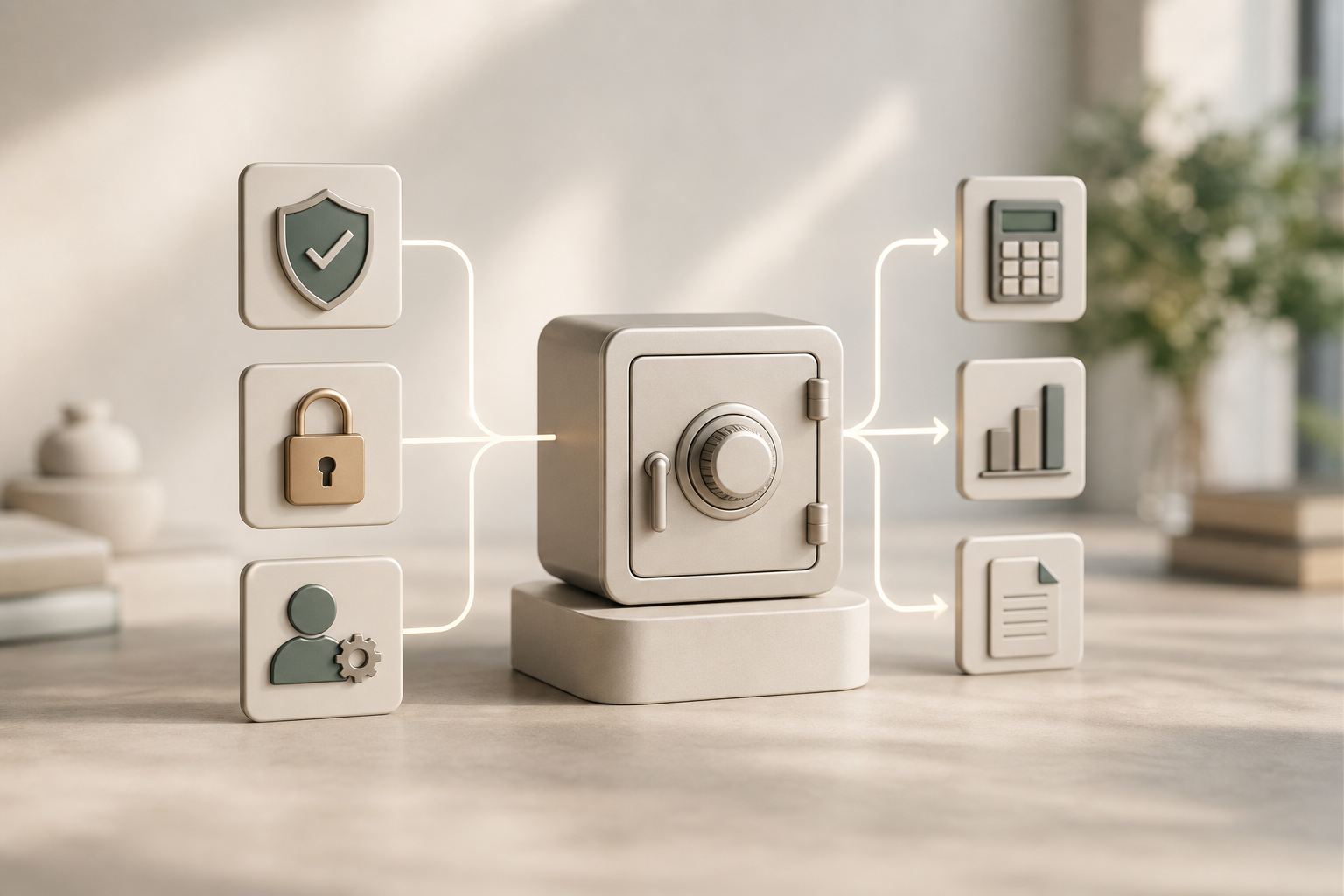
Moreover, EmpCloud shows platform maturity beyond attendance alone. It is trusted by 1,500+ businesses operating in 15+ countries and managing 50,000+ employees, with partnerships across 200+ companies. The platform includes 10 integrated modules and is available in 9 languages, which helps smaller teams scale practices used by larger organizations without piecing together multiple vendors.
“EmpMonitor has been a big improvement for us, providing real-time insights into employee productivity. Coupled with the Project Management tool, we’ve seen a marked improvement in task coordination and project completion rates. This workforce management software has helped us in simplifying our operations and boosted our overall efficiency.” — Karen Martinez, HR Manager At Global Inc.
Security Snapshot
EmpCloud operates with SOC 2 compliant processes and controls to protect sensitive data at rest and in transit. Biometric and document storage is fully encrypted, and access is governed through OAuth2/OIDC with SSO, RBAC, and multi-tenant isolation. Protected record management centralizes sensitive fields in a hardened store so audits and access reviews are straightforward.
For everyday compliance, small teams benefit from pragmatic privacy features. Consent and policy templates help you align with GDPR/CCPA/BIPA without writing everything from scratch, while configurable data retention and delete-on-request tools reduce administrative overhead. Admin audit logs capture every view, change, and export across attendance and payroll so you can answer who, what, and when in seconds.
Security controls at a glance
- Encryption: AES-256 at rest, TLS 1.
- Identity: OAuth2/OIDC with SSO, optional MFA, and SCIM provisioning
- Access: RBAC with per-role scopes and IP allowlisting
- Auditing: Immutable logs for enrollments, approvals, edits, and exports
- Residency: Regional hosting options to align with local regulations
Also Read!
EmpCloud vs Hubstaff for Small Businesses: Which Is Better for Employee Monitoring?
Best Employee Monitoring Software for Small Businesses in 2026
Getting Started: Setup Tips for Your First Week
You don’t need a project plan to launch. Follow these simple steps and you’ll be live in a day.
- Start on the Free tier and enroll 2–3 employees to test capture and recognition.
- Mount a tablet by your main entrance. A standard iPad or Android tablet works.
- Enroll faces in good light. Ask staff to remove hats or heavy glasses for the first scan.
- Configure shifts, grace periods, and leave policies before you go live.
- Connect payroll so attendance data feeds in from day one. This removes manual transfer.
- Assign RBAC roles. Give managers view/approve access.
- Run a 2–3 day mini-pilot and review logs for false rejects, late punch patterns, and payroll sync health.
Keep admin rights tight. Upgrade to Bronze at $4.66/user/month (1–10 users, billed yearly) as you expand. Silver is $3.83/user/month for 11–50 users, billed yearly.
- Use onboarding help. VIP support, USB detection features (for optional peripherals), and personalized walk-throughs keep launch smooth.
Moreover, if you manage desk teams, turn on automatic time tracking and URL/app tracking for clearer productivity data. For privacy, use the private time option and set custom reports to match your policy.
**Get Started Free →
-
- Hardware: choose a tablet with a good front camera; install a sturdy wall mount near consistent lighting and power. – 2. Account: create your Free-tier EmpCloud workspace; add your company locations and departments.
-
- Enrollment: capture 3–5 images per employee (neutral face, light smile) to build a reliable template. – 4. Shifts and policies: define workweeks, grace periods, overtime rules, paid holidays, and leave types.
-
- Payroll: connect to EmpCloud automated payroll or configure CSV export mapping to your provider. – 6. Roles: set RBAC—admins, managers (approve/edit), employees (self-view), finance (export).
-
- Pilot: announce start date, post a 1-page kiosk usage guide, and enable alerts for late/missed punches. – 8. Review: check daily dashboards, fix outliers, and lock period before final payroll run.
Common Launch Pitfalls (and Fixes)
- Poor lighting at kiosk → Add a soft LED strip or move near indirect daylight.
- Camera too high/low → Re-mount to typical eye height; add slight downward tilt.
- No policy doc → Publish a 1-pager on consent, retention, and missed punch steps.
- Over-permissive roles → Apply least-privilege; use manager-only approvals.
Frequently Asked Questions
How much does a face recognition attendance system cost for a small business?
Hardware-based systems can run $500–$2,000 upfront per device, plus install and support. Cloud tools remove that cost by using a tablet or phone you already own. EmpCloud starts with a Free tier and scales to $4.66/user/month (Bronze, 1–10 users) or $3.83/user/month (Silver, 11–50 users) billed yearly. For a 10-person team, that’s under $47 per month total. As a result, you can test first and expand without a big hardware bill.
- Budget tip: Multiply your effective hourly rate for payroll admins by the hours saved each cycle; that ROI usually dwarfs license costs within the first month.
Can face recognition attendance work without dedicated hardware?
Yes. Modern cloud systems run on standard tablets and smartphones. You mount a device by the door, enroll staff, and go live. EmpCloud uses built-in cameras with liveness detection, so you don’t need a custom scanner. This lowers cost and speeds up rollout.
Is face recognition attendance accurate enough to prevent buddy punching?
Advanced tools use liveness checks to block photos and videos. They also match face features, not surface images, which improves reliability. EmpCloud’s biometric attendance is designed to stop buddy punching, as noted by users like Laura Thompson, who reported it eliminated buddy punching with accurate tracking. In practice, a quick pilot with 3–5 staff will show you real-world accuracy in your lighting.
Is storing employee facial data safe and legal?
Biometric data needs strong protection and clear policies. Look for SOC 2 compliance, encryption in storage and in transit, and strict role-based access. EmpCloud is SOC 2 compliant with encrypted document storage and multi-tenant isolation. Always check local biometric privacy laws, like BIPA in Illinois, before rollout and set your retention rules accordingly.
- Practical steps:
- Post a clear notice at the kiosk with a link/QR to your policy.
- Capture consent during enrollment and keep versioned records.
- Set default retention (e. g., 24 months) and review quarterly.
How does EmpCloud compare to Keka or Zoho for face recognition attendance?
Keka and Zoho are strong HR suites, but face recognition is not their main focus and may rely on add-ons. EmpCloud offers native face-based attendance and access with payroll, leave management, and policies built in. You can start on the Free tier, then grow to Bronze or Silver as your team expands.
Can I integrate face recognition attendance with my existing payroll system?
EmpCloud includes automated payroll that connects directly to attendance and leave. This means hours, overtime, and holidays flow without manual work. For custom needs, there are 250+ API endpoints. You can build links to external tools without re-keying data.
What happens when my team grows beyond 10 or 50 employees?
Pricing steps down as you scale: Bronze ($4.66/user/month) for 1–10, Silver ($3.83/user/month) for 11–50, Gold ($3/user/month) for 51–200, and custom Enterprise for 200+. As your needs grow, you can enable more modules like project management, performance reviews, or field force tracking. You won’t outgrow the platform as you add sites and shifts.
How long does it take to set up face recognition attendance for a small office?
Most teams can go live in a day. Mount a tablet, create your account on the Free tier, and enroll each face (takes about 30 seconds). Then set shifts and leave policies, assign roles, and you’re set. Personalized onboarding support is included to keep it quick.
Will masks, hats, or glasses affect recognition?
Good systems handle minor obstructions like glasses and light hats through reliable feature matching. For initial enrollment, ask employees to remove heavily tinted glasses, masks, or caps to capture a clean template. After that, liveness and multi-angle detection help maintain accuracy during daily use. If your environment requires masks, test a short pilot to confirm performance before rollout.
What about visitor or contractor privacy?
Set separate roles and retention policies for visitors and contractors. Limit data access to authorized managers and configure automatic deletion after a defined period, such as 30 or 90 days. Provide a simple consent notice at the kiosk and keep a copy of your policy in the employee handbook or site induction pack.
Do I need internet connectivity for every check-in?
On-device recognition can work with intermittent connectivity, queuing events locally and syncing when back online. For best results, place kiosks where Wi‑Fi or LTE is stable, and enable offline-safe caching so shifts don’t stall if the network blips.
How do I prevent tailgating at the door?
Combine tablet check-ins with simple physical controls: door closers, signage, and, if needed, an electric strike connected to the kiosk. Use alerts for multiple check-ins without corresponding door opens, and position the kiosk where staff naturally pause.
The Takeaway for 2026
You need accuracy, speed, and strong security without paying a hardware tax, and tablet-based face checks deliver that combination for small teams. Face recognition attendance and access control works best when it links tightly to payroll, leave, and roles so disputes disappear and managers get time back. Testing should be risk-free: start on the Free tier, then scale to Bronze or Silver as hiring picks up. Build trust from day one with clear consent, retention settings, and SOC 2–backed security so your rollout is both fast and responsible. A short pilot with liveness enabled will validate everything in your own lighting and workflow.
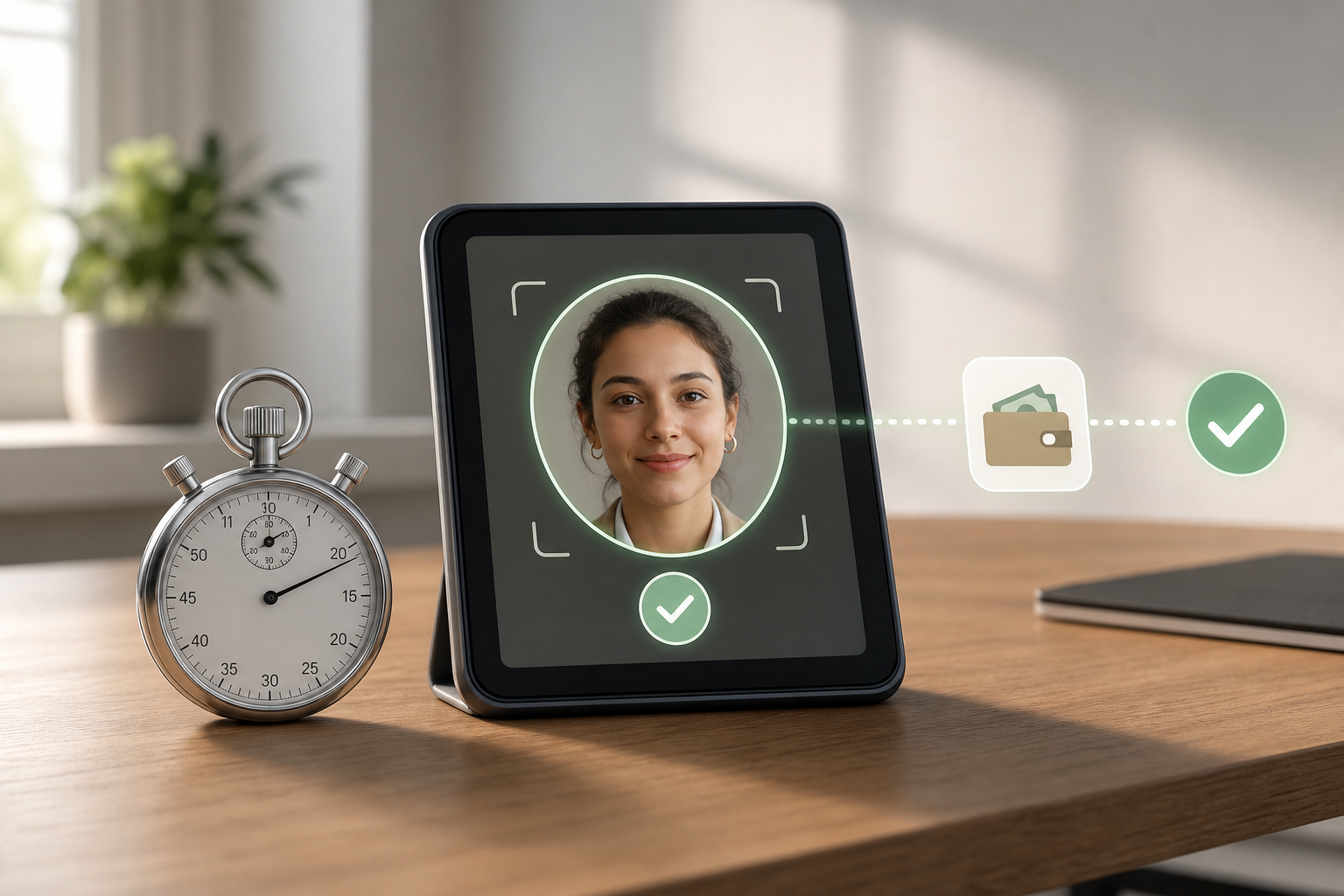
30-minute pilot plan
**See Pricing →; turn on liveness and geofencing if needed.
- Minute 15–20: Configure one default shift with 5-minute grace; set missed-punch alert to manager.
- Minute 20–25: Run five test check-ins per person (with/without glasses); attempt one spoof and verify block.
- Minute 25–30: Export a CSV and confirm fields (employee ID, timestamp, kiosk, status) match your payroll mapping.
Detailed 30-minute pilot steps (optional enhancement)
- Minute 0–5: Create Free-tier workspace, add one location, and invite 3–5 employees.
- Minute 5–10: Mount tablet, set brightness to auto, and position at ~1.5 m height.
- Minute 10–15: Enroll each employee with 3–5 images (neutral, light smile, slight angle).
- Minute 15–20: Define one shift, grace window, and overtime rule; toggle late/missed alerts.
- Minute 20–25: Perform 5 check-ins per person under varied lighting; attempt a printed photo and phone-screen replay to confirm liveness.
- Minute 25–30: Review dashboard, approve one exception, and run a test export or payroll sync.
Success Criteria to Greenlight Rollout
- Recognition under 1 second in 90%+ trials
- Zero successful spoofs using print or screen
- No more than 1 false reject per 50 check-ins
- Clean CSV or verified payroll connector
- Manager can approve and correct an exception in under 60 seconds

Quick Search Our Blogs
Type in keywords and get instant access to related blog posts.