**Start your free trial today →
You hired three strong remote contributors, yet deadlines still slip. To fix that, you need real work signals, not guesswork, and a setup that respects privacy from day one. You can use empmonitor workforce monitoring to set clear categories, track time and app/URL use, and review results weekly without micromanaging. In this 2026 guide, you’ll set it up the right way, avoid common traps, and turn data into coaching that your team accepts.
Right up front, here’s the quick path: install the agent, set visible mode unless there’s a clear legal reason not to, define what “productive” means by role, choose screenshot and keystroke rules with restraint, add shift schedules, then review the real-time dashboard for trends each week. That’s it. The details below help you do it well and keep trust high.

What Is EmpMonitor and What Problem Does It Solve?
EmpMonitor is the workforce monitoring module inside EmpCloud. It focuses on three big gaps you likely face: low visibility into remote and hybrid work, time waste in apps or websites that don’t move tasks forward, and weak accountability that shows up as missed SLAs and unclear handoffs. By design, it gives you real-time signals on work patterns so you can coach, not hover.
First, it tracks time automatically. You don’t need manual timesheets that drift or get filled at the end of the week. With automatic time tracking and URL/app tracking, you see where hours go, by task and app, without extra clicks for your team. That reduces friction and improves accuracy.
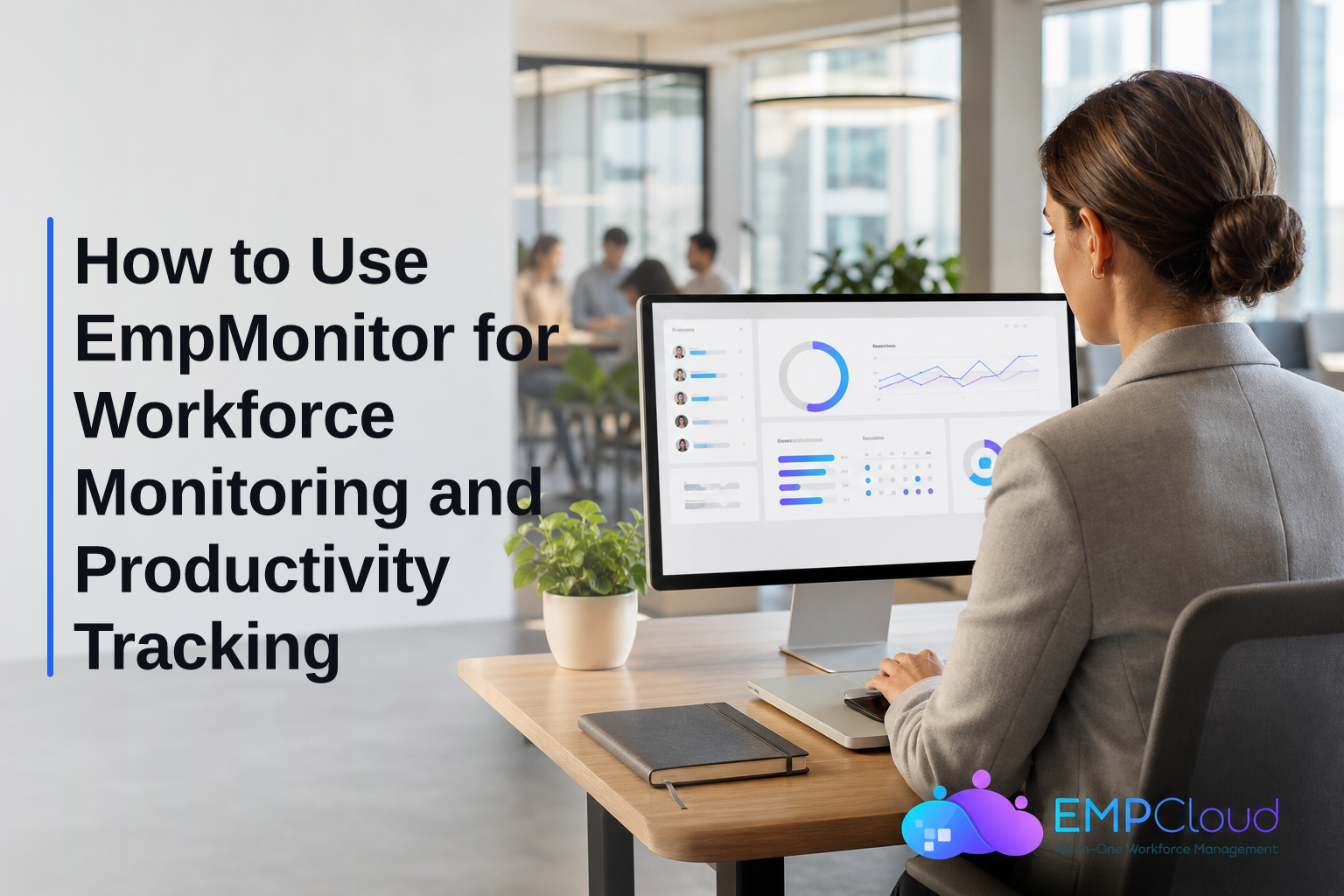
Second, it adds a real-time dashboard and productivity calculation. You can spot dips as they happen, not two sprints later. For example, you can compare focus time in IDEs vs. browser research across two squads to see who needs help with blockers or better task size. Because the dashboard updates in real time, standups get sharper and less defensive.
Third, it monitors employee productivity and internet activity in a way you can tailor. You set what counts as “productive” at the role level. A designer in Figma is productive; a finance analyst in Excel is productive; a support lead in a CRM is productive. A single global rule won’t work, so EmpMonitor lets you tune this by team.
Moreover, EmpCloud cites social proof you can bring to your leadership. It’s trusted by 1500+ businesses and is used to help manage 50,000+ employees. In addition, it’s SOC 2 compliant, which gives your security team a baseline on controls and audits. That matters if you work in finance, healthcare, or any regulated space.
Specifically, you can use empmonitor workforce monitoring to get that missing visibility while keeping a tight scope. Because the module lives inside a broader HR suite, it can also feed metrics into performance and payroll workflows when you’re ready. You don’t have to turn on everything on day one.
- Core signals: time, apps/URLs, productivity scoring
- Team controls: role-based “productive” rules, private time, idle/offline approvals
- Manager value: real-time dashboard, trends, and custom reports
"EmpMonitor has been a big improvement for us, providing real-time insights into employee productivity. Coupled with the Project Management tool, we've seen a marked improvement in task coordination and project completion rates. This workforce management software has helped us in simplifying our operations and boosted our overall efficiency." — Karen Martinez, HR Manager At Global Inc.
Also Read!
Best Employee Monitoring Software for Manufacturing Companies in 2026
Step-by-Step: Setting Up and Using EmpMonitor Effectively
You’ll move faster if you take this in order and decide up front what you will and won’t track. As you go, write down your choices; you’ll reuse them in your team policy and onboarding. You want a setup you can explain in two minutes to a new hire.
Step 1: Install the agent on employee devices
First, deploy the agent on company-managed devices. Use your OS’s standard tools or MDM. Keep notes on versions and who is covered. The agent enables automatic time tracking and URL/app tracking with minimal device strain. That’s the baseline signal you need.
Step 2: Choose visible or stealth mode
Second, set monitoring mode. Use visible mode by default to keep trust high and to comply with notice laws in many regions. Stealth/Un-stealth mode exists for sensitive cases, but talk to legal before you hide the client. Document the reason and time window if you do. You can still use empmonitor workforce monitoring in visible mode and get the insight you need.
Step 3: Define productive vs. unproductive categories
Third, build role-based categories. Mark IDEs, CRMs, design tools, terminals, and your wiki as productive for the right teams. Mark social feeds and shopping as unproductive, but be fair about research sites. Set “neutral” for gray areas. This drives the real-time dashboard and productivity calculation, so be precise.
Step 4: Configure screenshots (use restraint)
Fourth, set screenshot intervals only if you have a clear use case. For creative work, longer windows (e.g., 10–15 minutes) reduce noise. For audited roles, shorter windows may be justified. Automatic screenshots are powerful, but use them for coaching or compliance, not punishment. Pair with the private time option so people can pause capture for a doctor call or banking task.
Step 5: Add shift schedules and idle/offline rules
Fifth, add shift scheduling for each team’s time zone. Then configure offline/idle time approval. Idle time happens during calls, whiteboard breaks, or compile runs. Approval flows let managers mark that time as valid. Without this, your data will show false dips.
Step 6: Set roles, permissions, and reports
Sixth, create multiple roles and permissions. Give team leads access to their squad only; limit HR to what they need; keep raw keystroke monitoring off unless you have a policy and a lawful base. Build a few custom reports you’ll review weekly, not daily. That cadence lowers anxiety and keeps focus on trends, not blips.
Step 7: Review the dashboard like a coach
Seventh, meet weekly to review a short set of charts. Look for work-hour alignment to shifts, focus time by app, and context switches. Ask “What blocked us?” rather than “Who is at fault?” Use the data to spot process gaps and training needs.
Furthermore, if you manage a field team, add geo-location tracking for check-ins and distance logs. Tie those visits to tasks in your CRM. If USB detection matters to you for data-loss controls, turn it on with clear rules and notices.
Finally, you can use empmonitor workforce monitoring to power a simple performance rhythm: weekly trends review, monthly coaching notes, and quarterly goals. Keep the scope narrow. Add features only when your policy and training are ready.
Common Mistakes Teams Make with Employee Monitoring Software
You’ll save headaches by dodging five traps managers still fall into. Each has a fix that protects trust and improves the quality of your data.
Mistake 1: Deploying stealth without telling employees
Secret installs kill trust fast and can break local laws. Use visible mode except in rare, approved cases. Explain what you collect, why, and how long you retain it. Also, tell people about the private time option so they can pause capture for personal tasks.
Mistake 2: Tracking everything without defining “productive”
If you skip categories, your productivity score means little. Define by role first. Sales in a dialer is good; sales on design forums is not. Then revisit the list monthly after a few real sprints.
Mistake 3: Treating screenshots as punishment
Screenshots can show context, like a long code review. They aren’t a stick. Set a calm interval, mask sensitive data where possible, and use them in coaching 1:1s. Keystroke monitoring should be off by default and only enabled with a policy, purpose, and approval.
Mistake 4: Ignoring idle/offline approvals
Compile times, calls, and on-site visits all look idle. If you don’t set offline/idle time approval, you’ll undercount real work and frustrate high performers. Add the flow, train leads to use it, and audit it once a month.
Mistake 5: Skipping boundaries and onboarding
If you don’t set private time and data-retention rules, you create fear. Publish both. Then run personalized onboarding for managers so they coach with data. If you need help, ask for VIP support during rollout. You can use empmonitor workforce monitoring to add controls like USB detection only after you’ve earned trust.
For context on the practice itself, see this overview of Employee monitoring. Use it to brief your legal or HR partner on terms and history; keep your policy plain and local-law aware.
Also Read!
Best Employee Monitoring Software for HR Managers in 2026
Remote Team’s Guide to Choosing Employee Monitoring Software
Workforce Monitoring Tools Worth Considering
There are several tools you’ll hear about. Hubstaff, Time Doctor, ActivTrak, and Teramind are common picks for pure monitoring and analytics. EmpMonitor, as part of EmpCloud, is different in one key way: it sits inside a broader workforce suite that also covers recruitment, onboarding, payroll, performance, and exit management. If you want one system of record, that can matter.
Moreover, EmpCloud highlights scale and security. It is SOC 2 compliant and supports managing 50,000+ employees across 15+ countries. For field teams, it offers geo-location tracking with live location, timeline review, and distance tracking. If attendance is a priority, there’s also face recognition attendance and access control.
In addition, EmpCloud connects to 41 AI tools across 7 providers so you can query HR data and trigger actions. That means trends you see in monitoring can feed into AI-powered performance reviews and follow-up tasks. You don’t have to stitch systems by hand.
To keep this balanced: if you want a focused time tracker with fewer knobs, a single-purpose tool may feel lighter. If you want workforce monitoring plus HRMS, payroll, and field force features under one roof, you can use empmonitor workforce monitoring within EmpCloud and expand later.

What to Do Next: Building a Monitoring Policy That Works
Start with your policy. Write a one-page draft that covers purpose, scope, what is collected (time, apps/URLs, optional screenshots), how long you keep data, who can view it, and how private time works. Share it with HR and legal for review. Keep the language plain.
Next, run a pilot with one team. Communicate in advance, install the agent, and meet after week one to adjust categories. Review data weekly, not daily.
Use the real-time dashboard for trends and coach with grace. Tie insights to work goals, not surveillance. For example, if context switches are high, group tasks or change handoff rules.
Then, connect monitoring to your broader people process. With EmpCloud’s AI-powered performance reviews, continuous performance tracking, and a 360° feedback system, you can turn signals into fair reviews and real growth. As you scale, you can use empmonitor workforce monitoring to inform training, workload balance, and payroll accuracy without extra tools.
Finally, expand by stage. Add shift schedules for more teams, bring in field tracking if needed, and only then consider stricter controls. You can keep it simple in 2026 and still see real gains.
**See pricing and plans →
Key Takeaways
- Install the agent, set visible mode, define categories, and review weekly like a coach.
- Use idle/offline approvals and private time to avoid false negatives and privacy harms.
- Keep screenshots and keystrokes limited and purpose-led, with clear policy and access rules.
- You can use empmonitor workforce monitoring inside a full HR suite for scale, SOC 2, and field features.
- Share your policy early, pilot with one team, and link insights to goals and 360° feedback.
What to Do This Week
Block two hours to write your one-page policy and pick your pilot team. Deploy the agent in visible mode, set three role-based productive categories, and schedule a 30-minute weekly dashboard review. By next week, you’ll have clean trend data to coach on. If you’re ready to try it now, start light and add features only after team buy-in.
Quick Search Our Blogs
Type in keywords and get instant access to related blog posts.