
Employee monitoring and productivity tracking helps small teams see where time goes, reduce bottlenecks, and make better project estimates. In this 2026 small‑business guide, you’ll learn what it does, which features to prioritize, realistic pricing, rollout pitfalls to avoid, and a simple plan that protects privacy and trust.
**Start your free trial today → lowers stress by replacing guesswork with clear, privacy‑aware insights for you and your team.
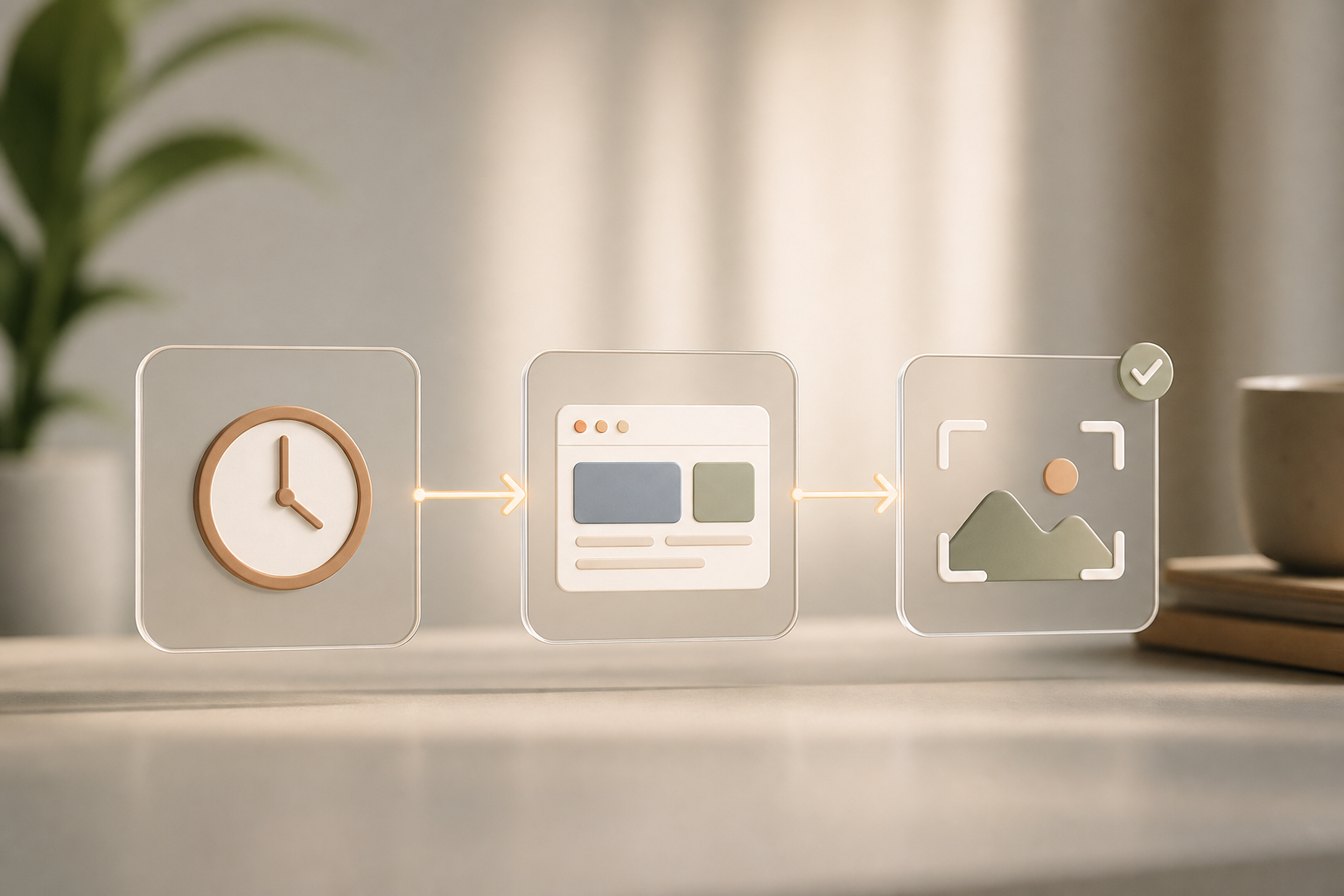 -> dashboard/reports, with privacy controls like ‘private time’ and ‘transparency notices’ highlighted; styled for a small business audience)
What Employee Monitoring Software Actually Does (And Whether Your Small Business Needs It)
At its core, monitoring software records work signals so you see where time goes. The common building blocks are time logging (manual or automatic), app/URL usage, optional screenshots, activity levels (keyboard/mouse), and simple reporting dashboards. Some tools also track shifts, idle time, and approvals for offline hours. Modern platforms increasingly bundle privacy features, private time modes, employee‑visible dashboards, and granular retention periods, so teams can collaborate around data without feeling watched.
Surveillance vs. Productivity Focus
Not all tools serve the same job. Surveillance‑heavy products record constant screenshots, keystrokes, and sometimes webcam feeds. Productivity‑focused tools track time, apps/URLs, and basic activity to show trends and blockers without deep intrusion. For small teams, I push for the lighter side unless you have a clear compliance reason.
- Surveillance‑heavy: chosen for strict compliance or sensitive data environments.
- Productivity‑focused: chosen for time billing, remote visibility, and improving flow.
Legitimate use cases include managing remote or hybrid teams, tracking billable hours for clients, finding workflow bottlenecks, and meeting compliance needs. For instance, automatic URL/app tracking plus a weekly dashboard can reveal that context‑switching between tools kills deep work.
However, not every small business needs this. If you’re under five people, sit in one room, and don’t bill by the hour, a shared task board may be enough.
- You’ve grown past five employees and can’t see workload balance.
- You shifted to remote or hybrid and miss on‑site visibility.
- You keep missing project deadlines or don’t know why estimates slip.
- You bill clients for hours and need clean audit trails.
Therefore, set the frame early: this is about visibility, not micromanagement. Share links to reputable background reading, such as Wikipedia’s overview of employee monitoring, and define what you will and will not track. And in 2026, transparency features, like employee‑visible dashboards and private time, should be standard. Also consider publishing a brief “what we track and why” memo before any pilot so employees see that the goal is better planning and fewer late nights, not punishment.
“EmpCloud’s Employee Monitoring has made tracking our team’s performance so easy. The insights we get have really helped us improve engagement and boost productivity.” — George Williams, Chief HR Officer
How to Evaluate and Choose the Right Monitoring Tool: A Step-by-Step Framework
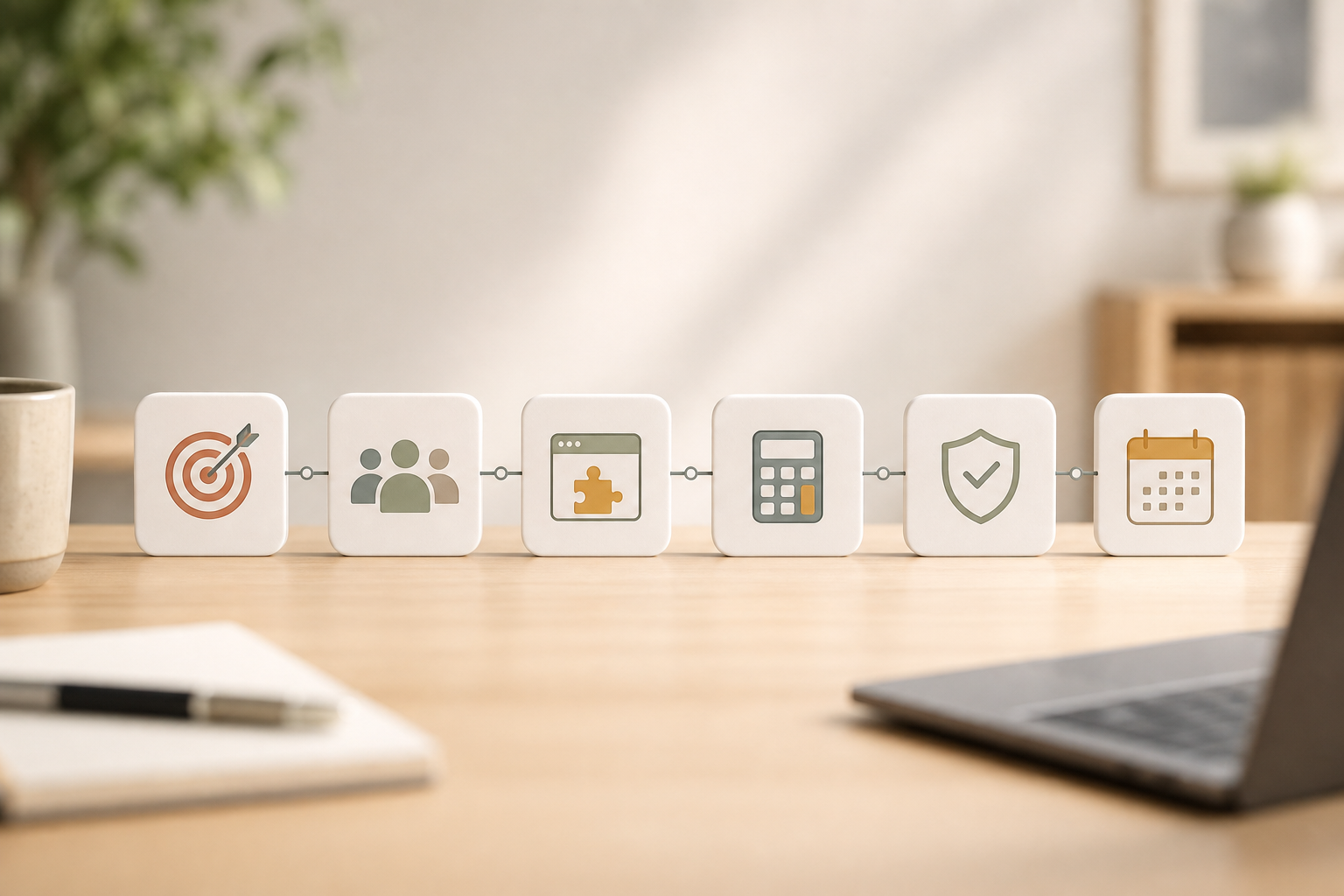
You do not need a “do‑everything” platform if your main goal is simple time data. Use this six‑step path and resist scope creep.
Step 1: Define your single primary goal
Be precise. Is it visibility on productivity, compliance, or time billing? For productivity visibility, you’ll want app/URL usage and a real‑time dashboard.
For compliance, you may require stricter modes like screenshots or even keystroke logs. For billing, you need accurate time data, approvals for idle/offline time, and clean reports. Write one success metric you’ll validate after two weeks (for example, “reduce untagged time by 50%” or “produce client‑ready billable reports in under 5 minutes”).
Step 2: Audit your team structure
List who is in‑office, remote, field, or hybrid. Field teams may need geo‑location tracking and distance logs. Remote teams may benefit from optional screenshots.
In‑office teams might only need simple time and app/URL usage. Note the devices in play (Windows, macOS, Linux, iOS/Android), BYOD vs. company‑issued hardware, and any shared kiosks or VDI sessions that could affect data accuracy.
Step 3: Must‑have vs. nice‑to‑have features
Draw a hard line.
- Time tracking (automatic/manual) with offline/idle time approval
- App/URL monitoring with productivity tagging
- Reporting dashboards and roles/permissions
- Transparent mode, private time toggle, and clear data policies
- Integrations with payroll or project tools
Nice‑to‑haves might be screenshots, shift scheduling, or keystroke monitoring. However, don’t add them unless your goal calls for it. Document how each feature maps to your goal so you can disable anything that adds friction without clear value.
Step 4: Check pricing models and do the math
Most tools charge per user per month. Free tiers exist, but they cap users or features. For a five‑person team, a $5/user plan costs about $25/month.
For 25 users, a $4/user price is $100/month. Therefore, annual costs can swing by thousands as you grow. 83 (11–50 users), and Gold at $3 (51–200 users) when paid yearly.
83 (11‑50 users), and Gold at $3 (51‑200 users) when paid yearly. Remember to check whether prices differ for monthly vs. annual billing, whether add‑ons (like screenshots or geofencing) are extra, and if there are implementation or data export fees.
Pro tip: build a 24‑month TCO table that includes headcount growth, expected churn, and two optional add‑ons. The cheapest sticker price can be more expensive if it forces a later migration.
Step 5: Test privacy and transparency controls
Insist on employee‑visible dashboards, a private time button, and admin‑set data retention. Moreover, look for clear modes (stealth or un‑stealth) that you can disable for a transparent rollout. As a result, you’ll reduce pushback and legal risk. Confirm whether employees can review, correct, or delete personal data where required by law, and whether BYOD devices can easily exclude personal apps and off‑hours.
Step 6: Run a 2‑week pilot with your real work
Pilot with 3‑5 employees across roles. Keep the scope tight: one team, one project, two weeks. Then meet for 30 minutes to review reports, discuss what felt invasive, and decide which features to keep for a wider launch. This is where employee monitoring and productivity tracking either earns trust or loses it, your call depends on how you run this test. Capture before/after metrics (such as unbilled time, average focus blocks, or rework hours) to demonstrate benefits in concrete terms.
Mini Decision Matrix
| Goal | Key Feature Needed | Tool Type to Look For |
|---|---|---|
| Productivity visibility | App/URL usage + real‑time dashboard + trends | Productivity‑focused monitor |
| Compliance | Screenshots, roles/permissions, keystroke (if needed) | Surveillance‑heavy or hybrid |
| Time billing | Accurate time, offline/idle approvals, custom reports | Time tracker with reporting |
| Field work proof | Geo‑location, timeline review, distance tracking | Field force management module |
**[Book a quick demo →] Tracking everything when you only need time data
If your goal is billing, you don’t need keystrokes and screenshots. Extra data adds noise you will never review. Fix: Turn off non‑essential trackers and keep the dataset small.
- Choosing enterprise tools you’ll never use
A 10‑person team does not need a 500‑feature console with SOC reports on every toggle. You’ll pay more and ship slower. Fix: Pick small‑business tiers and grow later if needed. - Ignoring the employee experience
Without private time options or visible dashboards, your team will push back hard. Fix: Enable private time, use un‑stealth mode, and give employees access to their own data. - Not acting on the data
Reports that nobody reads become surveillance theater. Fix: Schedule a weekly 15‑minute review to spot one blocker and make one change.
“EmpMonitor has been a game‑changer for us, providing real‑time insights into employee productivity. Coupled with the Project Management tool, we’ve seen a marked improvement in task coordination and project completion rates.” — Karen Martinez, HR Manager at Global Inc.
Moreover, pick tools with roles and permissions so managers only see the data they need. And remember, employee monitoring and productivity tracking works only if you close the loop: discuss insights with your team and adjust the work, not the people. Share quick wins broadly, for example, “we cut Slack context‑switches by 22% by batching notifications”, to reinforce the purpose.
Tools Worth Evaluating for Small Business Monitoring
Pick by use case, not hype. Here’s how the landscape breaks down in 2026.
Category 1: All‑in‑one workforce platforms
These bundle HR, payroll, performance, projects, and monitoring in one place. EmpCloud is one example with HRMS, payroll, performance and career management, face recognition attendance, Field Force Management, and EmpMonitor for workforce monitoring. 66/user/month for 1–10 users, paid yearly). It is SOC 2 compliant and is trusted by 1500+ businesses across 15+ countries.
Competitors in this “suite” camp include Zoho, Keka, HROne, Zimyo, and PulseHRM. Trade‑off: fewer tools to juggle, but a steeper learning curve on day one. For growing SMBs centralizing HR + payroll + projects, an all‑in‑one can reduce vendor sprawl and improve data consistency across modules.
Category 2: Dedicated monitoring tools
These focus on activity tracking first, time logs, apps/URLs, screenshots, and basic productivity scores. Names you’ll hear include Hubstaff, Time Doctor, and ActivTrak. Trade‑off: simpler setup and reports, but you’ll add integrations for HR, payroll, or deeper project features. These tools are ideal when your primary goal is productivity visibility or billable proof, and you already have separate HR/payroll providers.
Category 3: Lightweight time trackers
For freelancers or tiny crews (1–5 people), trackers like Toggl or Clockify keep it to time entries, tags, and basic reports. Trade‑off: easy to start and cheap, but thin on monitoring and dashboards for managers. If you later need app/URL usage or role‑based permissions, you may outgrow them and migrate to a more full option.

Ultimately, the “best” choice depends on Step 1 in your framework. If your main need is billing accuracy, a clean time tracker with offline/idle approval might beat a complex suite. If you plan to centralize HR, payroll, and projects in 2026, an all‑in‑one can cut context switching and vendor sprawl.
What to Do This Week: Your Monitoring Software Action Plan
You can make real progress in five days without burning trust.
- Day 1: Write your top three goals and share them with your co‑founder or HR lead. Keep it specific: “Billable hours clarity,” “See app usage trends,” “Support remote schedules.
- Day 2: Survey your team about work setup (remote, hybrid, field) and comfort with visibility. Include a short note linking your draft policy and mention supportive resources like a return to work letter.
- Day 3: Use the six‑step framework above to shortlist two or three tools that fit both your goals and budget. Do the per‑user math for your exact team size.
- Day 4: Start free trials or free tiers and test with 3–5 employees across roles. Turn on transparent mode, enable private time, and test offline/idle approvals.
- Day 5: Draft a one‑page monitoring policy that explains what’s tracked, why, retention rules, and how staff can view their own data. Share it, get feedback, and set a weekly 15‑minute review.
As a result, you’ll move from guesswork to facts, without alienating your team. If you need help picking tiers, you can sanity‑check costs in minutes.
Get pricing for your team → Bronze ($4.66), Silver ($3.83), and Gold ($3) can change the winner for your size.
- Act on the data. Schedule a 15‑minute weekly review to spot one blocker and make one change. That’s how employee monitoring and productivity tracking turns into real results.
Moreover, choose vendors that treat security and compliance as first‑class (for example, SOC 2 compliance and encrypted records). And remember, a thoughtful policy plus two weeks of transparent testing beats months of debate.
Legal and Ethical Considerations in 2026
- Consent and notice: In many jurisdictions (including parts of the EU, Canada, and several U. S. states), you must provide clear notice and, in some cases, obtain written consent before monitoring. Even when not strictly required, notice improves trust and adoption.
- Purpose limitation: Collect only what you need to meet your stated purpose. If the goal is billable accuracy, app/URL usage may be enough—no need for keystrokes or webcams.
- Data minimization and retention: Set retention windows (for example, 90 days for screenshots, 12 months for time logs) and purge on schedule. Allow exports when employees request their own records.
- BYOD boundaries: If staff use personal devices, limit collection to allowlisted work apps and schedules. Provide opt‑out or company‑device alternatives.
- Cross‑border data: If your team is distributed, verify where data is stored and how transfers are protected (for example, SCCs for EU data).
- Accessibility: Ensure dashboards are accessible (screen‑reader friendly, color‑contrast compliant) so every employee can view their own data.
Pro tip: Publish a 1‑page “Monitoring Summary” in plain language that covers what’s tracked, why, when, for how long, and who can see it. Link the full policy for details.
Sample Monitoring Policy Outline (1 Page)
- Purpose: Why we use monitoring (visibility, billing accuracy, compliance).
- Scope: Who is covered (roles/locations), what devices (company vs. BYOD), and when monitoring is active.
- Signals collected: Time tracking, app/URL usage, optional screenshots (if enabled), location (for field roles only).
- Privacy controls: Private time, employee dashboards, data access requests.
- Retention: How long each data type is stored and when it’s deleted.
- Access and permissions: Which roles can see which data; audit logs for admin access.
- Security: Encryption in transit/at rest, SOC 2 or equivalent controls, SSO/MFA options.
- Employee rights: How to request corrections, exports, or policy clarifications.
- Contact: Who to email with questions or concerns.
You can evolve this outline into a signed acknowledgment form during rollout.
Metrics That Matter (And Ones to Ignore)
Track a small set of leading indicators tied to your goal:
- For productivity visibility: focus blocks per person per week, context‑switches per hour, top apps by time, and trend deltas week over week.
- For billing: billable vs. non‑billable ratio, untagged time, average approval time for idle/offline entries, invoice accuracy.
- For compliance: percentage of users in transparent mode, retention adherence, audit log completeness.
Avoid vanity metrics that invite micromanagement (for example, raw keystroke counts). Instead, combine quantitative signals with qualitative check‑ins to understand root causes.
Change Management Tips for a Smooth Rollout
- Involve a pilot council: Invite two skeptics and two champions to your pilot. Their feedback will shape a more balanced policy.
- Train managers first: Teach them how to interpret reports and talk about trends without shaming individuals.
- Share team‑level insights publicly, discuss individual data privately: Keep conversations constructive and focused on removing blockers.
- Adjust settings iteratively: Start with minimal tracking, then add features only if your success metrics stall.
- Celebrate improvements: When you ship a policy or complete a pilot, share a quick internal post summarizing what changed and why.
Quick ROI Math for SMBs
- Baseline: If a 12‑person agency bills at $85/hour and each person loses 30 minutes/day to context‑switching, that’s 6 hours/day or ~30 hours/week lost.
- Recovery: Cutting that by one‑third reclaims ~10 hours/week. At $85/hour, that’s $850/week or ~$44,000/year—often more than the annual subscription.
- Administration: If managers save 2 hours/month on timesheet reconciliation via approvals and clean exports, that’s another 24 hours/year saved.
This is why aligning features to your single goal, and actually using the reports weekly, matters more than chasing every tracker under the sun.
Troubleshooting Common Rollout Issues
- Low agent adoption: Pre‑schedule a 10‑minute install block, offer a Zoom “office hour,” and provide a step‑by‑step checklist by OS.
- Noisy data: Tighten app tagging, exclude personal apps, and set minimum activity durations (for example, ignore windows active <15 seconds).
- Privacy pushback: Reiterate private time options, show employee dashboards in a live demo, and disable screenshots unless legally required.
- Manager overreach: Use role‑based permissions so team leads only see their teams; enable admin audit logs to reinforce accountability.
Final Thoughts
The goal of employee monitoring and productivity tracking is not surveillance, it’s clarity. When you keep the scope small, prioritize transparency, and review the data with your team, you’ll find and fix the few blockers that cause most of the delays. Start with a tight pilot, document decisions, and iterate. That’s how the practice builds trust and delivers results in 2026 and beyond.
Quick Search Our Blogs
Type in keywords and get instant access to related blog posts.